
The desktop app
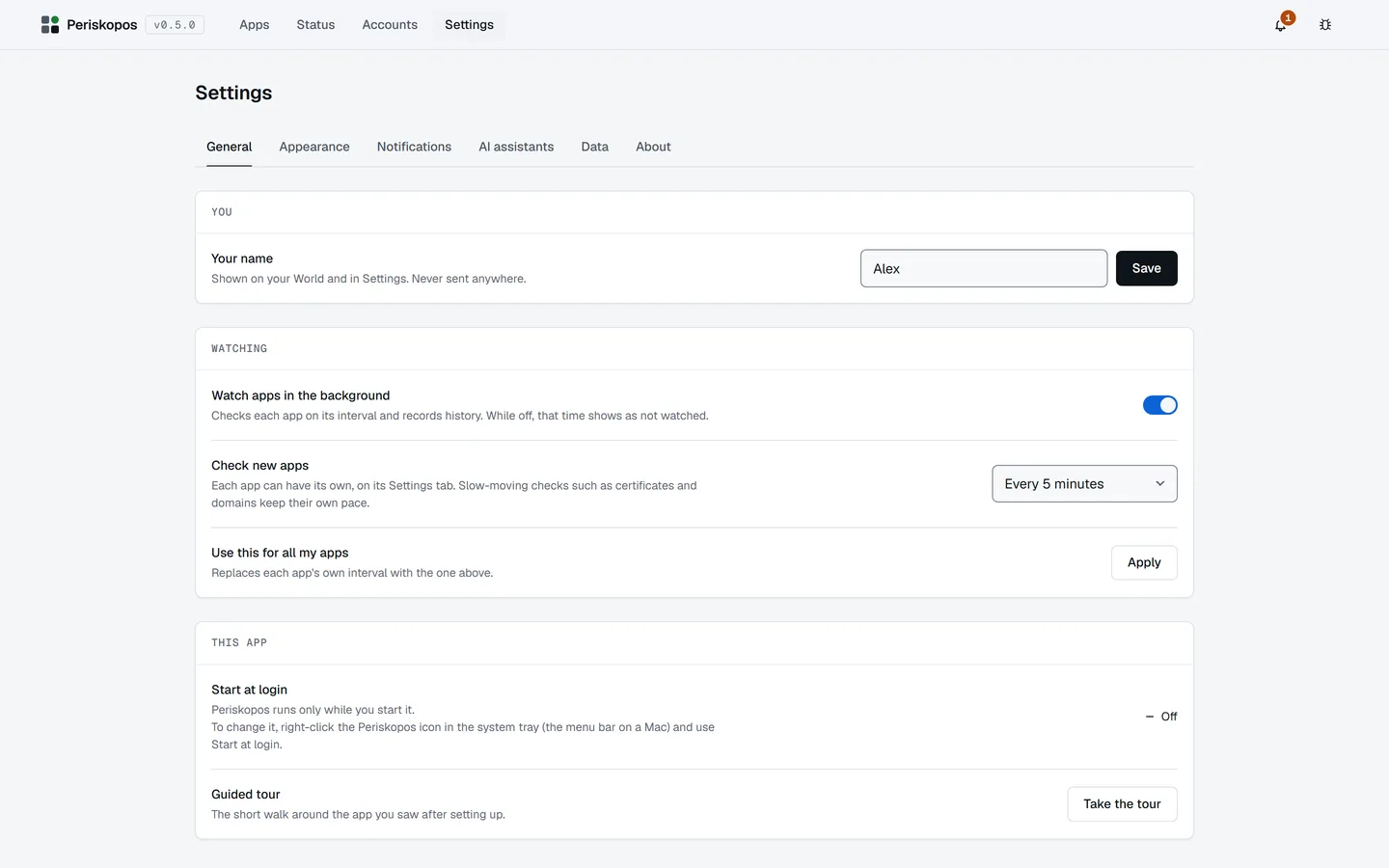
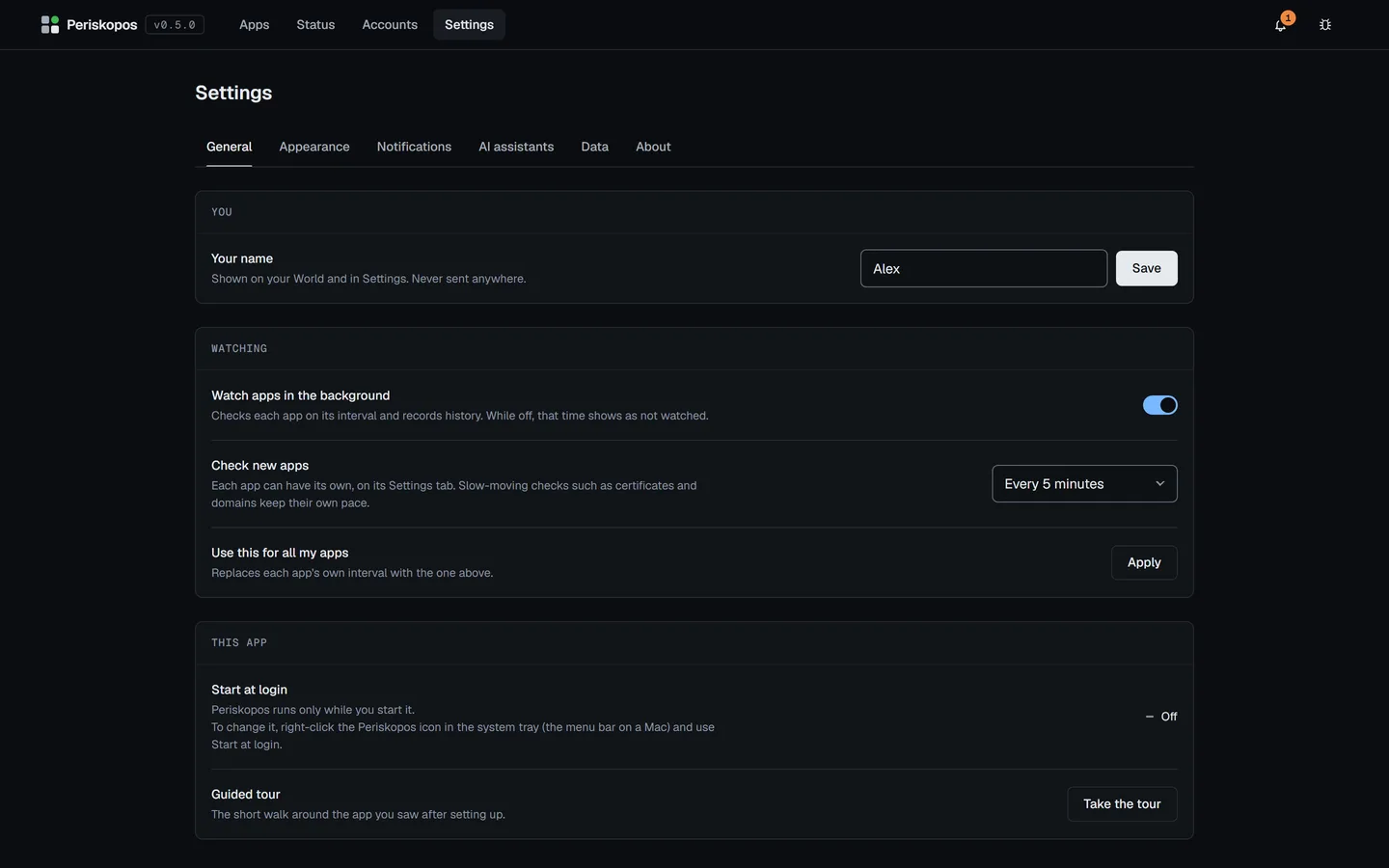
Periskopos runs as a desktop app: its own window and icon, a tray icon that keeps it watching when the window is closed, notifications that open the window, and a Start at login switch.
The window
Section titled “The window”- A full app shell. On Windows and Linux the window is frameless and the page’s own top bar is the title bar (drag it to move the window; reload, minimize, maximize and close are buttons at its right); a Mac keeps its own window buttons.
- There’s a splash while the server starts, a real menu (reload, zoom, copy and paste, About, Show log, Open data folder, Help), and the window opens in the colours you last saw. On Windows and Linux the menu (File, Edit, View, Help) opens from the ☰ button at the top bar’s right, or with a tap of Alt; on a Mac it’s in the menu bar at the top of the screen. This guide’s “File → Show log” and “Help → Report an issue” are in it.
- Only the app opens Periskopos. Each time it starts, the app makes a
secret key, hands it to the server it starts, and gives it to its own
window. A browser, a script or any other program that opens
localhost:4100gets a page saying Periskopos opens only in its desktop app. See the security model.
The tray
Section titled “The tray”- Closing the window hides it to the tray. Quit from the tray icon (right click; the menu bar on a Mac). Hovering the icon shows how your apps are doing.
- At a glance: its menu lists every app, problems first, with a coloured dot and what’s wrong (“CI failing on main”, “Deploying abc1234”); click one to open it. The icon itself gets an amber dot when something needs attention and a red one when an app is down.
Starting at login
Section titled “Starting at login”Use Start at login in the installed app’s tray menu. Starting the app
with --enable-login-item switches it on without the tray menu (handy when
setting up an install from a script).
periskopos://fleet (the apps list), status, services,
settings[/notifications|assistants|data],
apps/<slug>[/deploys|traffic|actions|history|settings] and
apps/<slug>/settings/connections|protocol open the window on that page
(registered by the installed app). Anything else is refused.
The log
Section titled “The log”The server’s output goes to data/logs/periskopos-<date>.log (rotated at
5 MB, five days kept). Menu: File → Show log.
One copy at a time
Section titled “One copy at a time”The app can only open a server it started itself. If another Periskopos
already holds the port, the app says which process it is. When that’s a
server no Periskopos app is running (an old install-service start, or one
started by hand and left running), it offers Stop it and continue;
another open app’s server is never stopped from here.
Uninstalling
Section titled “Uninstalling”Switch off Start at login in the tray menu first, then quit Periskopos (tray → Quit) and remove it:
| Windows | Settings → Apps → Installed apps → Periskopos → Uninstall |
| macOS | Drag Periskopos from Applications to the Bin |
| Linux | Delete the .AppImage file |
Your apps, their history and your keys stay behind, so a reinstall picks up where you left off. To remove them too, delete Periskopos’s folder:
| Windows | %APPDATA%\Periskopos |
| macOS | ~/Library/Application Support/Periskopos |
| Linux | ~/.config/Periskopos and ~/.config/periskopos |
That folder holds the registry, its backups, the logs and the keys file
(.env.local) with its key. Deleting it can’t be undone: keep a copy of
.env.local if you might want your keys again. An AI assistant you
connected keeps Periskopos in its own settings; remove it there
(Connect an assistant says where).
macOS and Linux
Section titled “macOS and Linux”Each platform’s installer is built on its own kind of machine, by the Desktop build workflow in GitHub Actions, and every release from 0.3.5 has all three. The installers are unsigned: macOS won’t open the app the first time (choose Done, then Open Anyway in System Settings → Privacy & Security), and Windows SmartScreen says “unknown publisher” (More info, Run anyway).